

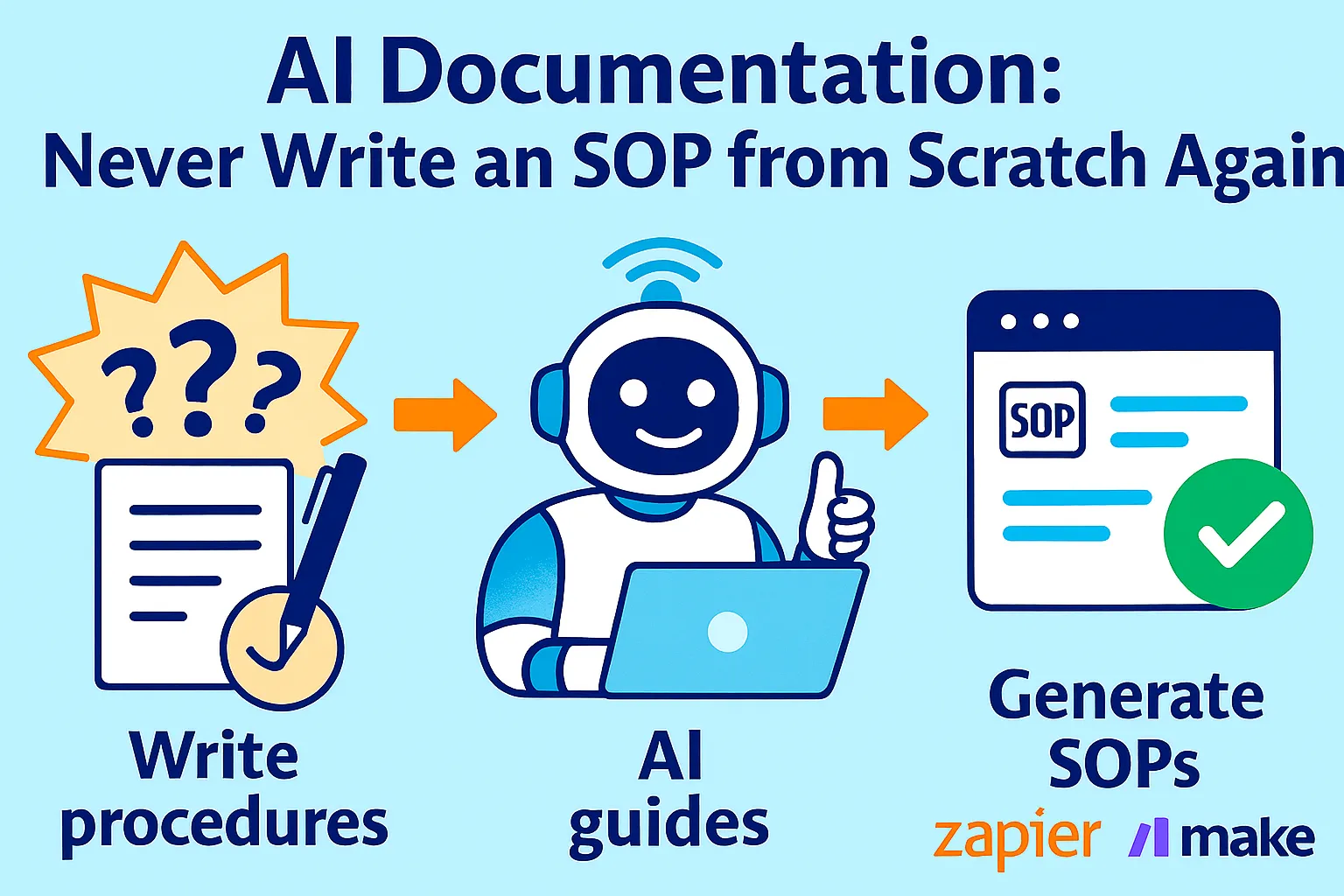
There's a task you've done 47 times. You could do it in your sleep. You've never written it down.
When a contractor asks how to do it, you record a quick Loom. When they leave, you record it again for the next person. When you can't remember your own process six months later — because you changed something and didn't document the change — you spend 20 minutes reconstructing what you already knew.
This is the solo founder documentation trap: processes live in your head, occasionally escape into a Loom recording that nobody can find, and never exist as searchable, updatable, shareable documentation.
Most founders know they should document their processes. They also know they won't sit down to write SOPs from scratch. Writing documentation is the kind of task that feels important but never feels urgent — until you hire your first contractor and spend three days answering questions that a proper doc would have handled.
The AI documentation system fixes this by making documentation a byproduct of work you're already doing, not a separate activity you have to schedule. You record a Loom the way you already do. The SOP writes itself. When your process changes, one prompt refreshes the doc. When you hire, everything is in one searchable knowledge base that your new collaborator can navigate without asking you anything.
Here's how to build it.
Why Solo Founders Never Document
Before building the system, name the real reasons documentation doesn't happen. It's not laziness. It's three structural problems.
Problem 1: Documentation is always slower than just doing the thing
Writing a proper SOP for a 10-minute task takes 40 minutes. The ROI is invisible until you've repeated the task 20 times or hired someone who needed the doc. Founders optimize for today. Documentation pays off in six months.
Problem 2: Processes change before docs are finished
You spend an afternoon documenting your client invoicing workflow. Three weeks later you switch from Wave to Stripe. The doc is now wrong. Updating it requires starting over. So it stays wrong, or gets deleted. Either way, the work you did documenting it was wasted.
Problem 3: Docs live in the wrong place
You write an SOP in Notion. The next one goes in Google Docs because you're in Drive already. The third one ends up in a Loom description field. Now you have a three-location knowledge base where nothing is findable. Contractors ask you instead of searching because searching returns nothing reliable.
The AI documentation system solves all three: AI writes the first draft in seconds (so speed isn't a barrier), refresh prompts update docs when processes change (so docs stay accurate), and everything funnels into one knowledge base (so finding things actually works).
The 3-Source Documentation Pipeline
Processes get documented from three different source types. Each has its own conversion workflow.
Source 1: Loom Recordings → SOPs
This is the highest-leverage input. You're already recording Looms to explain processes to contractors. Those recordings contain every step, in sequence, with your verbal reasoning attached. They're complete process documentation — just in the wrong format.
Path A: Loom AI (fastest, least control)
After you record a video, Loom AI automatically turns your video into a text document based on the content of your transcript, with templates to choose from including SOP, Step-by-step guide, PR description, QA steps, and Code docs. Loom automatically incorporates screenshots from your recording into the relevant steps.
This works well for simple processes. One click, done, minor edits needed.
Where it falls short: Loom's built-in AI produces a solid first draft but often lacks structure for complex multi-step processes — no prerequisites section, no troubleshooting, no "why this step matters" context that makes an SOP actually usable by someone new.
Path B: Loom Transcript + Master SOP Prompt (more control, better output)
Export your Loom transcript (available in every recording) and run it through this prompt:
You are an expert SOP writer. Using this video transcript,
create a complete Standard Operating Procedure.

STRUCTURE (use this exact format):

## [Process Name]

**Purpose:** [One sentence — what this process achieves]
**When to use:** [Trigger condition — what situation requires this process]
**Time required:** [Realistic estimate]
**Prerequisites:** [Tools, access, or prior steps needed]
**Owner:** [Who is responsible for this process]

---

### Step-by-Step Instructions

For each step:
- Step number and clear action (start with a verb)
- Why this step matters (1 sentence — don't skip this)
- What "done correctly" looks like
- Common mistake to avoid at this step

---

### Troubleshooting

[3-5 most likely failure points and how to resolve them]

---

### Quick Reference Checklist

[Single checkbox list of every action in order —
for someone who already knows the process and just
needs a reminder]

---

IMPORTANT RULES:
- Write for someone who has never done this before
- Be specific enough that they don't need to ask questions
- If the transcript mentions a tool, name the exact menu
  item, button, or field
- Flag any step that requires judgment with:
  ⚠️ JUDGMENT REQUIRED: [what to consider]

Video topic: [title of the Loom]
Process goal: [what successful completion looks like]

Transcript:
[paste full Loom transcript]
This prompt produces a document with prerequisites, judgment flags, troubleshooting, and a quick-reference checklist — everything Loom's native AI doesn't include.
The screenshot enhancement (for software SOPs):
Unlike tools that just convert speech to text, multimodal AI actually watches your videos — reading on-screen text, identifying UI elements, and understanding visual context. For software-heavy processes (how to set up a Zapier workflow, how to configure a Stripe product), tools like Docsie automatically capture screenshots at each click and embed them in the right step.
For founders not using dedicated tools: export Loom screenshots manually (Loom lets you download screenshots from any recording) and insert them after running the transcript through the SOP prompt.
Calibration point:
In the past, writing SOPs by hand took 2+ hours per document. With Loom AI, the same document takes under 5 minutes including edits. That's not an incremental improvement — it's a complete removal of the barrier that made documentation feel impossible.
Source 2: Meeting Transcripts → Process Docs
Not all processes come from solo work. Some emerge in client calls ("so the way we'll handle revisions is…"), contractor check-ins ("every Monday you should…"), or strategy sessions with yourself that you record for notes.
These conversations contain process decisions that never get captured as documentation. They stay in the recording.
The meeting-to-doc workflow:
Use Otter.ai (free, 300 min/month) or Fathom (free for unlimited recordings) to transcribe all your calls automatically.
Then run this prompt on any transcript that contains process decisions:
Analyze this meeting transcript and extract any process decisions,
workflow agreements, or "how we'll handle X" statements.

For each process you find:

PROCESS: [Name it clearly]
TRIGGER: [What situation starts this process]
STEPS DECIDED: [The sequence agreed on, in order]
OWNER: [Who does this — me / contractor / client]
OPEN QUESTIONS: [Anything decided vaguely that needs clarification]
SOP NEEDED: [Yes — this is a new process / No — variation of existing]

Only extract genuine process decisions.
Ignore general discussion, opinions, or one-off tasks.

Transcript:
[paste transcript]
Run this after every call where you make operational decisions. It takes 60 seconds. The output tells you exactly which new SOPs need to be written (or which existing ones need updating) based on what was decided.
Source 3: Existing Workflows → Documented Processes
You have automation workflows in Zapier, Make, or other tools that are completely undocumented. If you got hit by a bus (or just went on vacation), nobody — including future you — could understand how they work or how to fix them when they break.
The workflow documentation prompt:
For each Zapier/Make workflow, screenshot it or export its step list. Then:
Document this automation workflow as an internal SOP.

Include:
1. WORKFLOW NAME: [Descriptive, searchable name]
2. PURPOSE: What business problem this solves
3. TRIGGER: What starts this workflow, and under what conditions
4. STEP-BY-STEP: Each step in the automation with:
   - What it does
   - Why it's necessary
   - What data it passes to the next step
5. FAILURE MODES: What breaks this workflow and how to diagnose
6. DEPENDENCIES: What tools, accounts, or credentials it requires
7. LAST UPDATED: [today's date]
8. REVIEW TRIGGER: Flag for review if [process name] changes

Workflow description:
[paste Zapier step list or screenshot description]
After running this once per workflow, you have documentation for your entire automation stack. When a Zap breaks at 11 PM and you're troubleshooting, you have a written record of what it's supposed to do and where to look.
The Refresh System — Docs That Stay Accurate
The biggest documentation failure isn't the first draft. It's the update. Processes evolve. Tools change. You find a better way to do something. The SOP that was accurate three months ago is now half-wrong, and nobody updated it.
Most documentation systems die here. The AI refresh system keeps docs accurate with a 10-minute monthly run.
The doc refresh prompt:
Whenever a process changes, run this prompt with the existing SOP and a description of what changed:
This is an existing SOP. I've changed part of the process.
Update the SOP to reflect the change without altering
sections that are still accurate.

WHAT CHANGED:
[Describe the change in plain language —
e.g., "We switched from Wave to Stripe for invoicing.
The approval step now happens in Slack instead of email.
Step 4 now takes 5 minutes instead of 15."]

EXISTING SOP:
[Paste current SOP]

Instructions:
- Update only what changed
- Add a "Last Updated" line with today's date
- Add a "What Changed" note at the top of the doc
  (one sentence — for someone who already knows the old process)
- Flag any steps that now conflict with the change
  with: ⚠️ REVIEW: This step may be affected
- Keep all formatting, structure, and unchanged content identical

Output the complete updated SOP.
The monthly doc audit prompt (10 minutes, first Monday of each month):
Review this list of my current SOPs and flag any that are
likely outdated based on typical process evolution patterns.

For each SOP, based on its topic and age, tell me:
- LIKELY STILL ACCURATE: No action needed
- REVIEW RECOMMENDED: May have drifted — worth checking
- PROBABLY OUTDATED: This type of process changes frequently

Criteria for flagging:
- Software-dependent processes (tools update, UIs change)
- Any SOP older than 6 months
- Processes tied to external services (payment, email, integrations)
- Any process you've mentioned changing in recent notes

My SOPs:
[List each SOP with: name | date created | date last updated | tool it involves]
Run the audit. Review flagged items. Refresh any that need it. Done.
The "update trigger" habit:
The most reliable documentation system isn't a schedule — it's a trigger. Every time you do a process differently than your SOP describes, update the SOP immediately. Not tomorrow. Immediately.
Make this frictionless: keep your knowledge base open in a browser tab during work. When you deviate from a process, add a note at the top of the SOP: "NEEDS UPDATE — [what changed]." Then refresh it in the next 15 minutes while it's fresh.
The Knowledge Base Structure
All SOPs go in one place. Not Notion and Google Docs and Loom descriptions. One place.
Recommended: Notion (best for solo founders)
Notion gives you a searchable database, page templates, and easy sharing with contractors — all free.
The Knowledge Base database structure:
Notion Database: "SOPs & Processes"

Properties:
- Title (the process name — make it searchable)
- Category: Operations / Client Work / Finance / Marketing /
             Tech Stack / Content / HR
- Status: Current ✅ / Needs Review ⚠️ / Outdated ❌ / Draft 🔵
- Owner: Me / Contractor [name] / Shared
- Tools involved: multi-select (Stripe, Zapier, Notion, etc.)
- Date created
- Date last updated
- Source: Loom / Meeting / Manual / Workflow
- Linked Loom: URL to original recording
- Version: 1.0, 1.1, 1.2...
The four views you actually need:
View 1: Master Index (default) All SOPs, sorted alphabetically, showing: Title | Category | Status | Last Updated. This is the view a new contractor sees first.
View 2: Needs Review Filter: Status = "Needs Review" OR Last Updated > 6 months ago. Your monthly audit queue.
View 3: By Category Gallery view grouped by Category. When a contractor needs to know "how does onboarding work?" they go to Client Work category — not "search everything."
View 4: By Tool Filter by Tools involved. When you switch from Tool A to Tool B, filter by Tool A and see every SOP that needs updating.
The SOP page template:
Create a Notion template (so every new SOP has the same structure):
# [Process Name]

> **Status:** Current ✅
> **Owner:** [Name]
> **Last Updated:** [Date]
> **Time Required:** [X minutes]
> **Source Recording:** [Loom link]

---

## Purpose
[One sentence]

## When to Use
[Trigger condition]

## Prerequisites
- [ ] [Tool/access/prior step]
- [ ] [Tool/access/prior step]

---

## Steps

### Step 1: [Action verb + what]
**Why:** [One sentence]
**How to verify it's done correctly:** [What success looks like]
⚠️ **Common mistake:** [What to avoid]

[repeat for each step]

---

## Troubleshooting

| Problem | Likely cause | Fix |
|---------|--------------|-----|
| [issue] | [cause] | [resolution] |

---

## Quick Reference Checklist
- [ ] Step 1
- [ ] Step 2
- [ ] Step 3

---

*Last changed: [what changed in last update]*
Why the Loom link matters:
Even with a perfect written SOP, some processes are clearer on video. Keep the original Loom linked in every SOP. If a contractor gets confused by Step 4, they jump to the 3-minute mark of the recording. Text and video reinforce each other.
The First-Hire Handoff Package
The real payoff of this system arrives when you bring on your first contractor, VA, or employee. Instead of three days of onboarding calls, you hand them a link.
Building the Handoff Package:
Create a single Notion page: "Getting Started — [Role Name]"
# Getting Started: [Contractor Role]

Welcome. Everything you need to do this work is in this doc and
the linked knowledge base. Before our kickoff call, please:

1. Read this entire page (15 min)
2. Review the SOPs linked in your role section (30 min)
3. Write down any questions — we'll cover them on the call

If a question isn't on this page, check the knowledge base
before asking me. It's searchable.

---

## Your Responsibilities
[2-3 paragraph description of the role]

## Your First Week
[Day-by-day breakdown of what to do in the first 5 days]

## Your Core Processes (SOPs)
- [Client onboarding](link to SOP)
- [Weekly reporting](link to SOP)
- [File organization](link to SOP)
- [Tool X process](link to SOP)

## Tools & Access
- [Tool name]: [what it's for] | [login instructions / credential location]
- [Tool name]: [what it's for] | [login instructions / credential location]

## Communication
- **Async questions:** Add a comment to the relevant Notion page
- **Urgent issues:** Slack message me directly
- **Weekly check-in:** [Day + time]

## What "Good Work" Looks Like
[3-5 specific quality criteria — what you're optimizing for]

## What to Do If Something Goes Wrong
[Specific: who to tell, how, when to escalate vs. handle independently]
The AI handoff generator:
Once your knowledge base is populated, generate the handoff package with this prompt:
I'm creating an onboarding document for a new [role name].

Here are the SOPs they'll need to follow:
[List SOP titles and brief descriptions]

Here are the tools they'll use:
[List tools and what they're used for]

Here's the role description:
[2-3 sentences about what they do]

Generate a complete "Getting Started" onboarding page that includes:
1. Welcome section (warm, direct, sets expectations)
2. First-week day-by-day plan
3. Core processes section with placeholder links
4. Tools and access overview
5. Communication norms
6. What good work looks like (3-5 specific criteria)
7. What to do when something goes wrong

Tone: Professional but human. Like a founder who respects
their collaborator's time and intelligence.
Adjust the output. Add real links. You've just created a proper onboarding document in 15 minutes instead of three days of "let me walk you through this" calls.
Tools and Cost
Minimum viable stack ($0/month):
Loom free (25 videos) for recording
Loom AI transcript export (free) as documentation source
ChatGPT free for SOP generation prompts
Notion free for knowledge base
Total: $0/month — works for 3-5 core processes
Recommended stack ($20-40/month):
Loom Starter ($12.50/month): Unlimited recordings, AI workflows, transcript export
Notion free: Knowledge base and SOP database
ChatGPT Plus ($20/month) or Claude Pro ($20/month): Better SOP output, faster runs
Otter.ai free (300 min/month): Meeting transcription
Total: $32-42/month
Full stack ($60-80/month):
Loom Business ($16/month): Team features, analytics, custom branding
Docsie ($29/month): Dedicated documentation platform with AI video-to-doc
Fathom free: Unlimited call recording and transcription
Notion Plus ($10/month): Unlimited history, better sharing controls
Total: $55/month
When Docsie is worth paying for: If your SOPs are heavily software-dependent (step-by-step UI walkthroughs), Docsie's multimodal AI — which watches the video, reads screen text, identifies UI elements, and auto-captures screenshots — produces significantly better output than transcript-only approaches. Worth the upgrade if you're documenting 5+ software workflows.
Common Mistakes Solo Founders Make
1. Documenting once, never reviewing
An SOP written 8 months ago for a tool you've since upgraded is worse than no SOP at all — it creates false confidence. The monthly audit prompt exists precisely to prevent this. Run it.
2. Writing SOPs for yourself instead of a stranger
"Export the file" is not a step. "In Notion, click the three-dot menu at the top right of the page, select 'Export,' choose 'Markdown & CSV,' and save to the /Exports folder in Drive" is a step. Write every SOP for someone who has never seen your setup.
3. One mega-SOP per department
"Client Work Process" is not an SOP. "How to send a project completion email" is. Keep SOPs atomic — one process per document. Short, specific, searchable. A 47-step SOP covering six sub-processes is unusable.
4. Skipping the "why" for each step
Contractors who understand why a step exists make better judgment calls when something unexpected happens. Contractors who just know what to do without knowing why will skip steps that seem redundant and create problems you'll have to diagnose later. Include one "why this matters" sentence per step.
5. Keeping SOPs private
If a contractor has to ask you whether a doc exists before they can find it, the system is broken. Share the full knowledge base with every collaborator from Day 1. Contractor access to your processes is not a security risk — it's the point.
6. Documenting only when hiring
The right time to document a process is the second time you do it — not the first (you're still figuring it out) and not after months of doing it manually (you'll miss context). Second-time documentation captures the freshest, most accurate version of the process. Build the habit before you need it.
When You've Outgrown This System
You'll know it's time to upgrade when:
You have 5+ contributors editing docs. Notion works well for one or two people. With a team, you need versioning, approval workflows, and conflict resolution. Confluence ($5.75/user/month) or GitBook ($6.70/user/month) are built for collaborative documentation at this scale.
Your SOPs need regulatory compliance. If you're in a field requiring audit trails (healthcare, fintech, legal), you need documentation software with access logs, version history, and approval chains. Notion's free tier doesn't provide this. Look at Process Street ($30/month) or Trainual ($49/month).
You want to turn SOPs into training modules. Once you have a contractor team, raw SOPs need to become interactive training — quizzes, videos, completion tracking. Trainual ($49/month) combines documentation and training in one platform and is the natural upgrade from a Notion knowledge base.
You're documenting client-facing processes. Internal SOPs and client-facing help docs are different documents with different audiences. Tools like Intercom ($39/month) or Helpscout Docs ($20/month) manage client-facing documentation separately from internal processes — worth the split at scale.
Your Implementation Plan
Day 1 (1 hour): Identify and record
☐ List your 10 most-repeated processes (the ones you explain to contractors most often)
☐ Record a Loom for your top 3 most critical (the ones you can't afford to be wrong)
☐ Export transcripts from each recording
Day 2 (1 hour): Build the knowledge base
☐ Create Notion database: "SOPs & Processes"
☐ Add 8 properties (title, category, status, owner, tools, dates, source, Loom link)
☐ Create page template with full SOP structure
☐ Build 4 views: Master Index, Needs Review, By Category, By Tool
Day 3 (2 hours): Generate first SOPs
☐ Run transcript 1 through the Master SOP Prompt
☐ Review, edit, add screenshots
☐ Add to Notion knowledge base with correct metadata
☐ Repeat for transcripts 2 and 3
Day 4 (1 hour): Document your automations
☐ List all active Zapier/Make workflows
☐ Run Workflow Documentation Prompt for each one
☐ Add to knowledge base under "Tech Stack" category
Day 5 (30 min): Set up the refresh system
☐ Add monthly calendar reminder: "SOP Audit — 10 minutes"
☐ Save the monthly audit prompt in your Notion prompts library
☐ Add the "NEEDS UPDATE" habit to your workflow (immediate flagging when processes change)
Week 2:
☐ Document 3 more processes from Loom recordings
☐ Share knowledge base with any active contractors
☐ Run meeting-to-doc prompt after next operational call
Month 2:
☐ Run first monthly audit
☐ Refresh any outdated SOPs
☐ Generate handoff package for your most common contractor role
The Real Talk on Documentation
Documentation has a reputation problem. It's associated with corporate bureaucracy — binders nobody reads, wiki pages that haven't been updated since 2019, mandatory HR procedures that have nothing to do with how work actually gets done.
That's what happens when documentation is a compliance exercise. What you're building here is different: a knowledge base that makes you faster, not slower, because you stop re-explaining things, re-figuring-out things, and re-recording Looms for every new person who joins.
The founders who resist documentation longest are usually the ones who rely most heavily on being the person everyone asks. That feels like indispensability. It's actually a bottleneck — and eventually a ceiling on how much you can grow without burning out.
The AI documentation system doesn't ask you to sit down and write SOPs. It asks you to keep recording Looms the way you already do, then spend five minutes running the output through a prompt.
You were already doing the work. Now the work creates a lasting record.
That's it.



Comments (0)
Leave a Comment