

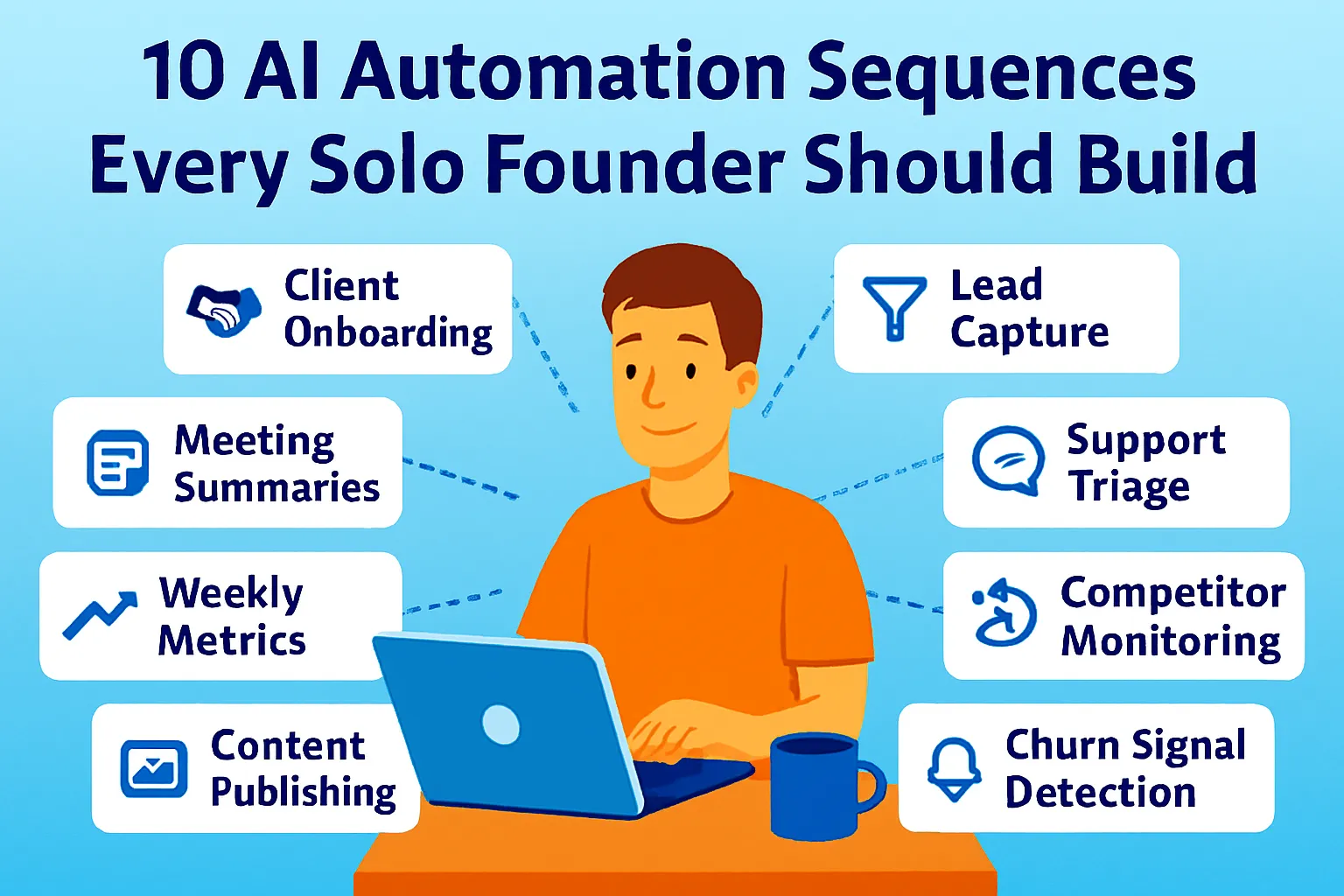
Most automation advice describes what to automate. This article shows you exactly how — with the trigger, every action step, where the AI fits in, which tool to use (Zapier or Make), build time, and a priority matrix so you know which sequence to build first.
Ten sequences. Ordered by ROI. Blueprints you can implement today.
How to Read These Blueprints
Each sequence follows the same format:
TRIGGER — the event that starts the sequence ACTIONS — the steps that run automatically AI STEP — where AI adds classification, summarization, or personalization TOOL — Zapier or Make (with reason) BUILD TIME — realistic hours for a non-technical founder ROI SCORE — impact × frequency ÷ build cost (1–10)
Zapier vs. Make — when to use which:
Use Zapier when: the workflow is linear (A → B → C), you want native AI steps without API configuration, you need reliability over complexity, or you're connecting common apps that have Zapier's pre-built integrations.
Use Make when: the workflow has branching logic (if X then A, else B), you need loops or iterators (process each item in a list), you want lower cost per operation at volume, or you need to transform data structures between tools.
When in doubt: Zapier for simple, Make for complex.
Priority Matrix (Build in This Order)
Rank | Sequence | Weekly Time Saved | Build Time | ROI Score |
|---|---|---|---|---|
1 | Client Onboarding | 3–5 hrs | 4–6 hrs | 10/10 |
2 | Lead Capture → CRM | 45–90 min | 1–2 hrs | 9/10 |
3 | Payment → Invoice + Follow-up | 30–60 min | 2–3 hrs | 9/10 |
4 | Meeting → Notes + Tasks | 45–60 min | 1–2 hrs | 9/10 |
5 | Support Ticket Triage | 60–90 min | 3–4 hrs | 8/10 |
6 | Weekly Metrics Report | 45–60 min | 3–4 hrs | 8/10 |
7 | Content Publishing Pipeline | 90–120 min | 2–3 hrs | 7/10 |
8 | Proposal → Contract → Invoice | 60–90 min | 3–5 hrs | 7/10 |
9 | Churn Signal Detection | 30–45 min | 3–4 hrs | 7/10 |
10 | Competitor Monitoring Brief | 30 min | 2–3 hrs | 6/10 |
Build the top three first. They cover the highest-frequency, highest-consequence operations in most solo businesses. Sequences 4–6 come next. Sequences 7–10 are stage-dependent — build them when the function they automate is a confirmed bottleneck.
Sequence 1: Client Onboarding
ROI Score: 10/10 | Build Time: 4–6 hours
The highest-leverage automation in a solo business. Manual onboarding for a service business takes 3–7 hours per client — scheduling, contracts, invoicing, asset collection, kickoff setup. Automated, it takes under 10 minutes of your attention and runs identically every time.
TRIGGER: New deal stage = "Won" in CRM (HubSpot / Notion / Pipedrive) OR: Contract signed in PandaDoc / DocuSign OR: First payment received in Stripe (for simpler businesses)
ACTIONS:
Step 1: Create client project in Notion
  → Pull fields from CRM: name, email,
    company, service type, start date
  → Use template: "New Client — [Service Type]"
  → Set status: Onboarding

Step 2: Send welcome email (from your Gmail)
  → AI STEP: Personalize welcome email
    Input: client name, service purchased,
    their stated goal (from CRM notes)
    Prompt: "Write a warm 150-word welcome email
    for [name] who just signed up for [service].
    Their goal is [goal from intake form].
    Confirm next steps: kickoff call link,
    what to prepare. Sign as [your name]."
  → Send via Gmail (not Zapier email —
    comes from your real address)

Step 3: Send kickoff scheduling link
  → Email: Cal.com / Calendly link for
    60-min onboarding call
  → Delay: 30 minutes after welcome email
    (not simultaneous — feels more human)

Step 4: Create asset collection form
  → Generate Typeform / Tally link
    from template for this service type
  → Send as follow-up email:
    "While you book the kickoff, here's
    what to prepare..."

Step 5: Notify yourself
  → Slack DM or Gmail to yourself:
    "New client onboarded: [Name] —
    kickoff link sent, assets requested"
  → Tag in Notion: "Awaiting kickoff booking"
AI STEP DETAIL: The personalization in Step 2 is where AI earns its place. A generic "Welcome, excited to work together" email reads as automated. An email that references their specific goal (pulled from the intake form or CRM notes) reads as personal — because it is. The AI writes 150 words in your voice in 3 seconds. You review before it sends.
TOOL: Zapier (linear sequence, no branching needed, native Gmail and PandaDoc integrations)
FAILURE DETECTION: Add a Zap error notification: if any step fails, email yourself immediately. A failed Step 2 (welcome email not sent) is a client experience problem. You need to know within minutes.
Sequence 2: Lead Capture → CRM
ROI Score: 9/10 | Build Time: 1–2 hours
Every lead that arrives via contact form, email, or social and doesn't land in a CRM immediately has a chance of being forgotten. This sequence ensures every lead is captured, enriched, and followed up within minutes — not the hours it takes you to notice the form submission.
TRIGGER: New Typeform / Tally / Gravity Forms submission (website contact form) OR: New email to leads@yourdomain.com OR: New LinkedIn connection message (via Zapier's LinkedIn integration)
ACTIONS:
Step 1: AI STEP — Qualify and summarize lead
  Input: form submission fields
  (name, email, company, message, source)
  Prompt: "Classify this lead:
  HOT — clear need, budget signals,
        decision-maker language
  WARM — interested but early stage
  COLD — information-seeking,
         no clear need or budget

  Also: write a 2-sentence summary of
  what they're looking for.
  Return: [HOT/WARM/COLD] | [summary]"

Step 2: Create contact in CRM (HubSpot free)
  → Map all form fields to CRM properties
  → Set lead status from AI classification:
    HOT → "High Priority"
    WARM → "Nurture"
    COLD → "Low Priority"
  → Add AI summary to contact notes

Step 3: Route based on classification
  → IF HOT:
    Send immediate reply from your Gmail:
    "Got your message — let's find a time."
    + Calendly link for discovery call
    + Slack DM to yourself: "HOT LEAD: [Name]"

  → IF WARM:
    Add to ConvertKit sequence:
    "New Lead — Nurture"
    (3-email educational sequence)

  → IF COLD:
    Add to ConvertKit newsletter list
    No immediate outreach

Step 4: Log to tracking sheet
  → Google Sheets: add row with
    name, source, classification, date
  → Used for monthly lead quality analysis
AI STEP DETAIL: The classification in Step 1 determines everything downstream. Without it, you'd need to read every form submission and manually decide urgency. With it, HOT leads get a personal reply within 5 minutes automatically — which is the response time that most converts to booked calls.
TOOL: Zapier (Tally and Typeform have native Zapier triggers; branching logic via Zapier's built-in Paths feature handles the three-route split adequately)
MAKE ALTERNATIVE: If you receive 50+ leads per week or want more sophisticated scoring logic (combining form data with LinkedIn profile data), use Make — its router module handles conditional paths more cleanly than Zapier's Paths at volume.
Sequence 3: Payment Received → Invoice + Follow-Up
ROI Score: 9/10 | Build Time: 2–3 hours
Every paid invoice requires the same sequence of actions: confirm payment, send receipt, update records, mark project active, prepare next invoice if recurring. Manual: 20–30 minutes per payment. Automated: zero.
TRIGGER: Stripe: Payment intent succeeded OR: Stripe: Subscription payment succeeded (for recurring)
ACTIONS:
Step 1: Send payment confirmation email
  → AI STEP: Personalize confirmation
    Prompt: "Write a 100-word payment
    confirmation email for [client name]
    who just paid $[amount] for [service/product].
    Warm, professional. Confirm what they
    paid for, what happens next,
    how to reach you if questions.
    Sign as [your name]."
  → Send via Gmail

Step 2: Update project status
  → Notion: Set project status to "Active"
    (if first payment)
    OR "Paid — [Month]" (if recurring)
  → HubSpot: Update deal stage to "Active Client"

Step 3: Log revenue
  → Google Sheets / Notion:
    Add row to revenue tracker:
    [Date] | [Client] | [Amount] | [Product] | [Stripe ID]

Step 4: IF subscription payment:
  → Schedule next invoice reminder
    (Delay: 25 days)
    → Email to yourself:
      "Review upcoming renewal for [Client]"

Step 5: IF one-time payment AND project type = "Milestone":
  → Create next milestone invoice draft in PandaDoc
    (populated from Notion project fields)
  → Email yourself: "Draft invoice ready — review before sending"

Step 6: IF first payment from new client:
  → Trigger Sequence 1 (Client Onboarding)
    via webhook to Zapier
AI STEP DETAIL: Step 1's personalization converts a generic "Payment received" auto-reply into something that reinforces confidence in the purchase. It takes 3 seconds. The difference between "Your payment of $2,000 has been received" and a warm, specific confirmation that mentions what they're getting and what happens next is significant for client relationships.
TOOL: Zapier (Stripe native integration, linear logic, Gmail send)
Sequence 4: Meeting Ended → Notes + Tasks
ROI Score: 9/10 | Build Time: 1–2 hours
Every unprocessed meeting is a commitment waiting to be forgotten. This sequence captures every call automatically and converts it into structured notes and tasks before you open your next app.
TRIGGER: Fathom: Meeting summary ready OR: Otter.ai: Transcript completed OR: Google Calendar: Meeting ended (with Fathom webhook)
ACTIONS:
Step 1: AI STEP — Extract structured output
  Input: Fathom meeting summary + transcript excerpt
  Prompt: "From this meeting summary, extract:

  DECISIONS: [Bulleted list of decisions made]

  ACTION ITEMS — MINE: [Tasks I committed to,
  each starting with a verb, with deadline if mentioned]

  ACTION ITEMS — THEIRS: [Tasks they committed to]

  FOLLOW-UP REQUIRED: [Any items needing
  a follow-up email or message]

  KEY CONTEXT: [2-3 sentences of important
  context about this conversation for future reference]"

Step 2: Create Notion meeting page
  → Template: "Meeting — [Contact Name] — [Date]"
  → Populate: AI-extracted structured output
  → Link to: Client record in Notion CRM

Step 3: Create tasks from action items
  → For each "ACTION ITEMS — MINE" bullet:
    Create Notion task with:
    - Task name (the bullet)
    - Due date (extracted or default: 3 days)
    - Linked meeting page

Step 4: IF "FOLLOW-UP REQUIRED" is not empty:
  → AI STEP: Draft follow-up email
    Prompt: "Draft a follow-up email based
    on this meeting. Cover: [follow-up items].
    Tone: [professional/warm based on
    client relationship type].
    Subject line included.
    Under 150 words."
  → Save draft to Gmail (not send —
    you review before sending)

Step 5: Notify yourself
  → Slack or Gmail:
    "[N] tasks created from [Meeting Name] —
    review Notion"
AI STEP DETAIL: The structured extraction in Step 1 is the core value. Raw meeting transcripts are 2,000+ words. The AI condenses them into a 200-word structured brief — decisions, your tasks, their tasks, context — in 5 seconds. Step 4's draft follow-up converts the follow-up requirement into a ready-to-send email before you've even closed Zoom.
TOOL: Zapier (Fathom's webhook trigger works cleanly with Zapier; linear sequence)
Sequence 5: Support Ticket Triage
ROI Score: 8/10 | Build Time: 3–4 hours
Every support ticket requires the same initial step: understand what's being asked, categorize it, route it, and acknowledge receipt. Without automation, that step happens manually for every ticket. With it, 50–65% of tickets are categorized and have a draft response before you open them.
TRIGGER: New email to support@yourdomain.com OR: New Help Scout conversation OR: New Intercom conversation
ACTIONS:
Step 1: AI STEP — Classify ticket
  Input: Email subject + body (first 300 chars)
  Prompt: "Classify this support ticket:

  Category:
  HOW_TO — user doesn't know how to do something
           (answer in knowledge base)
  BUG — product isn't working as expected
  BILLING — payment, invoice, subscription question
  FEATURE — request for new functionality
  COMPLAINT — frustrated customer, needs empathy first
  OTHER — doesn't fit above

  Urgency:
  HIGH — paying customer, service broken,
         angry language
  MEDIUM — question, needs answer but not urgent
  LOW — feature request, general inquiry

  Return: [CATEGORY] | [URGENCY] |
  [one sentence summary]"

Step 2: Route based on classification
  → Apply label in Help Scout / Gmail:
    HOW_TO → "📖 How-To"
    BUG → "🐛 Bug Report"
    BILLING → "💳 Billing"
    COMPLAINT → "🔴 Urgent — Human Review"

Step 3: AI STEP — Draft response (for HOW_TO and BILLING)
  Prompt: "Draft a support reply for this
  [HOW_TO / BILLING] question.

  Knowledge base context: [paste relevant KB article]
  Customer question: [ticket content]

  Write a 100–150 word reply that:
  - Opens with acknowledgment (not 'Great question')
  - Answers directly using the KB content
  - Adds one personalized sentence
  - Ends with: 'Let me know if this helps
    or if you need anything else.'
  Sign as [your name]"

  → Save as draft in Help Scout / Gmail
    (NOT sent automatically)

Step 4: Send auto-acknowledgment (all tickets)
  → Simple acknowledgment within 2 minutes:
    "Got your message — we'll be back
    within [your SLA] hours."
  → This sends automatically;
    the draft response requires your review

Step 5: IF COMPLAINT or BUG (HIGH urgency):
  → Slack DM to yourself immediately:
    "🔴 Urgent ticket: [summary] —
    needs personal response"
  → Skip draft generation —
    these require human judgment

Step 6: Log to support tracker
  → Notion / Google Sheets:
    [Date] | [Category] | [Urgency] | [Summary]
  → Used for monthly KB gap analysis
AI STEP DETAIL: Two AI steps: classification (Step 1) routes every ticket without you reading it. Draft generation (Step 3) means HOW_TO and BILLING tickets arrive with a ready-to-review response — your job is a 15-second read and a click to send, not five minutes of writing. BUG and COMPLAINT tickets skip AI drafting intentionally — these require human judgment, empathy, or technical investigation that AI cannot reliably provide.
TOOL: Make (the routing logic — different actions per category and urgency combination — is cleaner in Make's router module than in Zapier's Paths)
Sequence 6: Weekly Metrics Report
ROI Score: 8/10 | Build Time: 3–4 hours
The Monday morning ritual: pull Stripe, pull Plausible, pull ConvertKit, pull Help Scout, write a 250-word summary. Automated: arrives in your inbox before you open your laptop, written, interpreted, and ready to act on.
TRIGGER: Schedule: Every Monday at 7:00 AM
ACTIONS:
Step 1: Fetch Stripe MRR
  → Zapier Stripe integration:
    get current MRR from active subscriptions
  → Calculate: vs last week (store in Zapier Storage)

Step 2: Fetch Plausible sessions
  → Plausible API (via Zapier Webhooks):
    last 7 days sessions, top sources

Step 3: Fetch ConvertKit stats
  → ConvertKit API: subscriber count,
    last broadcast open rate

Step 4: Fetch support volume
  → Help Scout API: tickets last 7 days,
    resolved count

Step 5: AI STEP — Write briefing
  Prompt: "Write a Monday business briefing
  for a solo founder. Data:

  MRR: $[X] ([+/-]% vs last week)
  Traffic: [X] sessions ([+/-]%)
  Email subscribers: [X] ([+/-] this week)
  Last email open rate: [X]%
  Support tickets: [X] ([X] resolved)

  Write:
  HEADLINE: One sentence — best or most
  important signal this week

  GREEN: What's ahead of expectations?
  AMBER: What needs attention?
  RED: What needs action today?

  THIS WEEK: One specific recommendation.

  Under 250 words. No fluff.
  Be direct — this is for the founder only."

Step 6: Send to self
  → Gmail: Subject "📊 Weekly Briefing — [Date]"
  → Body: AI briefing output

Step 7: Save to Notion
  → Notion database "Weekly Briefings":
    add entry with full briefing + raw data
    (needed for quarterly review prompts)
AI STEP DETAIL: The briefing is not a data dump — it's an interpretation. "GREEN / AMBER / RED + one recommendation" forces the AI to take a position, not just report numbers. The recommendation is what you act on. A report that ends with a clear action is worth ten reports that end with observations.
TOOL: Zapier (scheduled triggers, API steps via Webhooks, native Gmail send)
MAKE ALTERNATIVE: If you need to pull from more than 4–5 sources or do mathematical calculations between sources (e.g., calculating MoM growth rate from stored data), use Make — its data transformation tools handle multi-source aggregation more cleanly.
Sequence 7: Content Publishing Pipeline
ROI Score: 7/10 | Build Time: 2–3 hours
Publishing a piece of content manually means: write the post, resize for each channel, copy-paste to LinkedIn, draft the newsletter intro, schedule the Twitter thread, update the content calendar. Automated: one trigger starts a cascade that handles every downstream step.
TRIGGER: Notion: Page status changed to "Ready to Publish" OR: Google Docs: Document moved to "Publish" folder
ACTIONS:
Step 1: AI STEP — Generate channel variations
  Input: Full article / post content
  Prompt: "Repurpose this content for
  three channels:

  1. LINKEDIN POST (150–200 words):
     Conversational, insight-led,
     no bullet soup.
     Hook in first line (no 'I').

  2. TWITTER/X THREAD (5 tweets):
     Each tweet standalone.
     First tweet = hook.
     Last tweet = CTA to read full piece.
     Under 280 chars each.

  3. NEWSLETTER INTRO (100 words):
     Personal opener.
     What you learned or noticed.
     Sets up why they should read the piece.
     Second person ('you').

  Return all three, clearly labelled."

Step 2: Save variations to Notion
  → Add to content page:
    LinkedIn draft, Thread draft,
    Newsletter intro draft

Step 3: Schedule LinkedIn post
  → Buffer / Taplio:
    Create scheduled post from LinkedIn draft
    Schedule: [your posting day + time]

Step 4: Update content calendar
  → Notion database "Content Calendar":
    Set status: "Published"
    Add: publish date, channel, link (manual after live)

Step 5: Notify yourself
  → Slack / Gmail:
    "Content pipeline complete for [title]:
    LinkedIn scheduled ✅
    Thread draft saved ✅
    Newsletter intro ready ✅"
AI STEP DETAIL: Step 1 takes the core content and produces three publication-ready drafts simultaneously. Without this automation, repurposing one article takes 45–90 minutes. With it: you review three drafts in 5 minutes and approve or adjust. The AI produces consistent structure across every piece — no more publishing one thing to LinkedIn and forgetting to thread it.
TOOL: Zapier (Notion trigger, Buffer integration, linear sequence)
Sequence 8: Proposal → Contract → Invoice
ROI Score: 7/10 | Build Time: 3–5 hours
The deal-closing sequence: prospect says yes → proposal sent → contract signed → invoice issued. Manual: 3–4 hours of document creation and back-and-forth. Automated: each step triggers the next within minutes.
TRIGGER: CRM deal stage changed to "Proposal" (HubSpot / Notion)
ACTIONS:
Step 1: AI STEP — Generate proposal draft
  Input: CRM fields (client name,
  service type, scope notes, quoted price)
  Prompt: "Generate a proposal outline for:
  Client: [name]
  Service: [type]
  Scope: [notes]
  Investment: $[price]

  Include: Executive summary (2 sentences),
  What's included (bullet list),
  Timeline (from today),
  Investment summary,
  Next steps.
  Under 400 words. Professional tone."

  → Save to Notion: "Proposal — [Client] — [Date]"
  → Notify yourself: "Proposal draft ready —
    review in Notion"

Step 2: WHEN proposal approved (manual step):
  → Trigger: Notion status changed to
    "Proposal Approved"
  → Create PandaDoc contract from template
    (variables: client name, service,
    price, timeline — pulled from CRM)
  → Send contract for signature via PandaDoc

Step 3: WHEN contract signed:
  → Trigger: PandaDoc document status = "Completed"
  → Create invoice in Stripe / PandaDoc:
    Amount: quoted price from CRM
    Due date: [today + 7 days or per terms]
    Client email: from CRM
  → Send invoice
  → Update CRM deal stage: "Contract Signed"

Step 4: WHEN invoice paid:
  → Trigger Sequence 1 (Client Onboarding)
  → Update CRM: "Active Client"
  → Log to revenue tracker
AI STEP DETAIL: Step 1 generates the proposal structure — not the finished proposal, but the draft you'd spend 45 minutes creating from scratch. With an AI outline ready in Notion, your job is refinement (15–20 minutes) rather than creation. The downstream contract and invoice steps are pure data transfer — no AI needed, just reliable field mapping.
TOOL: Make (multi-trigger sequence — different triggers at proposal, signature, and payment stages require Make's scenario branching; Zapier would need three separate Zaps with webhooks connecting them)
Sequence 9: Churn Signal Detection
ROI Score: 7/10 | Build Time: 3–4 hours
The best time to prevent churn is before the customer cancels. Churn signals — declining usage, support frustration, invoice payment delays — arrive before the cancellation request. This sequence detects them and triggers a personal outreach automatically.
TRIGGER: PostHog / Mixpanel: User active days in last 14 days < threshold OR: Help Scout: Customer ticket count this month > 3 OR: Stripe: Invoice payment failed (first attempt)
ACTIONS:
Step 1: AI STEP — Assess churn risk
  Input: Customer name, signal type,
  usage data, support history
  Prompt: "Assess churn risk for [customer].

  Signal: [describe trigger —
  low usage / multiple support tickets /
  payment failure]

  Usage last 30 days: [data]
  Support tickets last 30 days: [N]
  Customer since: [date]
  MRR: $[X]

  Return:
  RISK: HIGH / MEDIUM / LOW
  LIKELY REASON: [1–2 sentence hypothesis
  based on the signals]
  RECOMMENDED ACTION: [Specific outreach —
  check-in call / usage help email /
  payment retry / personal note]"

Step 2: Route by risk level
  → HIGH RISK:
    AI STEP: Draft personal outreach email
    Prompt: "Write a personal email from
    [your name] to [customer name] who
    may be struggling with [product].

    Don't mention we noticed low usage.
    Frame as: checking in,
    offering a quick call.
    Warm, genuine. Under 100 words.

    Subject: include their name,
    no 'checking in' cliché."

    → Save as Gmail draft for your review
    → Slack DM: "⚠️ Churn risk: [name] —
      draft email ready in Gmail"

  → MEDIUM RISK:
    Add to ConvertKit sequence:
    "Re-engagement — tips and best practices"
    (value-first, not salesy)

  → LOW RISK:
    Log to Notion churn radar:
    [Name] | [Signal] | [Date] | LOW
    (monitor — no immediate action)

Step 3: Log all signals
  → Notion "Churn Radar" database:
    [Customer] | [Signal Type] | [Risk] |
    [Action Taken] | [Date]
  → Review weekly: patterns reveal
    product problems, not just customer problems
AI STEP DETAIL: Two AI steps: Step 1 interprets raw signals into a risk assessment with a reason hypothesis — turning "this user logged in 2 days this month" into "likely struggling with [specific feature], recommend usage help email." Step 2's draft email frames the outreach as a genuine check-in, not a retention alarm — which is the tone that actually works.
TOOL: Make (multi-trigger scenario — three different trigger sources require Make's ability to combine triggers and apply different routing logic per source)
Sequence 10: Competitor Monitoring Brief
ROI Score: 6/10 | Build Time: 2–3 hours
Competitor intelligence that doesn't reach you regularly is intelligence that doesn't exist. This sequence aggregates competitor signals weekly and synthesizes them into a one-page brief — without you visiting ten websites manually.
TRIGGER: Schedule: Every Monday at 6:30 AM (30 minutes before the weekly metrics report — both arrive together)
ACTIONS:
Step 1: Fetch Google Alerts
  → Gmail filter: emails from
    Google Alerts for competitor names
    arrive in label "🔍 Competitor Intel"
  → Zapier: fetch emails from that label
    in last 7 days

Step 2: Fetch competitor changelog
  → RSS feed from competitor changelog/blog
    (most SaaS tools have one —
     use Zapier RSS trigger or
     fetch via Webhooks)
  → Extract: titles and summaries of
    posts published this week

Step 3: AI STEP — Synthesize competitive brief
  Input: Google Alert snippets +
  changelog items this week
  Prompt: "Synthesize a weekly competitive
  intelligence brief.

  Sources:
  Google Alerts: [paste]
  Competitor changelogs: [paste]

  Produce:
  HEADLINE: Most important competitive
  development this week (1 sentence).
  If nothing notable: 'No significant
  moves this week.'

  MOVES THIS WEEK: [Bulleted list —
  each item: what happened +
  what it might mean for my positioning]

  GAP CHECK: Does anything they shipped
  or announced close a gap I'm relying on
  for differentiation?
  YES → flag specifically
  NO → confirm gap still intact

  ONE ACTION: [If anything warrants
  a response — update pricing,
  accelerate a feature, adjust messaging]

  Under 200 words."

Step 4: Send to self
  → Gmail: Subject "🔍 Weekly Competitor Brief — [Date]"
  → Combine with metrics report in digest format

Step 5: Save to Notion
  → "Competitive Intelligence Log":
    [Date] | [Headline] | [Key moves] | [Action taken]
  → Used in quarterly competitive review
AI STEP DETAIL: The "GAP CHECK" instruction is the most important element. It forces the AI to explicitly evaluate whether the competitor's moves affect the positioning you're relying on — not just report what happened, but flag what it means. A brief that ends with "gap still intact" is worth reading. One that flags "competitor just launched X, which closes your differentiation on Y" demands immediate attention.
TOOL: Zapier (RSS triggers, Gmail filters, scheduled trigger — all native Zapier integrations)
Connecting the Sequences: The Integration Map
These sequences aren't independent — they connect. The integration points between them are where the real leverage compounds:
Lead Capture (Seq 2)
    → IF won: triggers →
Payment Received (Seq 3)
    → IF first payment: triggers →
Client Onboarding (Seq 1)
    → creates project, sends welcome

Meeting (Seq 4)
    → creates tasks in same Notion
      project from Seq 1

Support Tickets (Seq 5)
    → high-urgency tickets create
      churn signals fed to Seq 9

Churn Detection (Seq 9)
    → draft emails saved to Gmail,
      reviewed in 15-min inbox sweep

Weekly Report (Seq 6) +
Competitor Brief (Seq 10)
    → both arrive Monday 7 AM
    → combined with OKR tracker
      for weekly planning session
When a new lead becomes a signed client, Sequence 2 captures them, Sequence 3 handles payment, and Sequence 1 fires the full onboarding automatically — all without you touching anything between "proposal signed" and "client fully onboarded."
That's the compound. Not one sequence. The sequences connecting into a system.
Build Order and Timeline
Week 1: Sequences 4 + 2 (highest ROI, lowest build time — 3-4 hours total) Week 2: Sequence 1 (client onboarding — longer build, highest operational impact) Week 3: Sequence 3 (payment flow — connects directly to Seq 1) Week 4: Sequence 6 (weekly report — now you have the data to fill it) Month 2: Sequences 5, 7, 8 (stage-dependent — build when the function is a real bottleneck) Month 3: Sequences 9, 10 (valuable but not urgent at early stage)
Eight weeks. Ten sequences. A solo business that runs substantially without manual handoffs.
That's it.



Comments (0)
Leave a Comment