

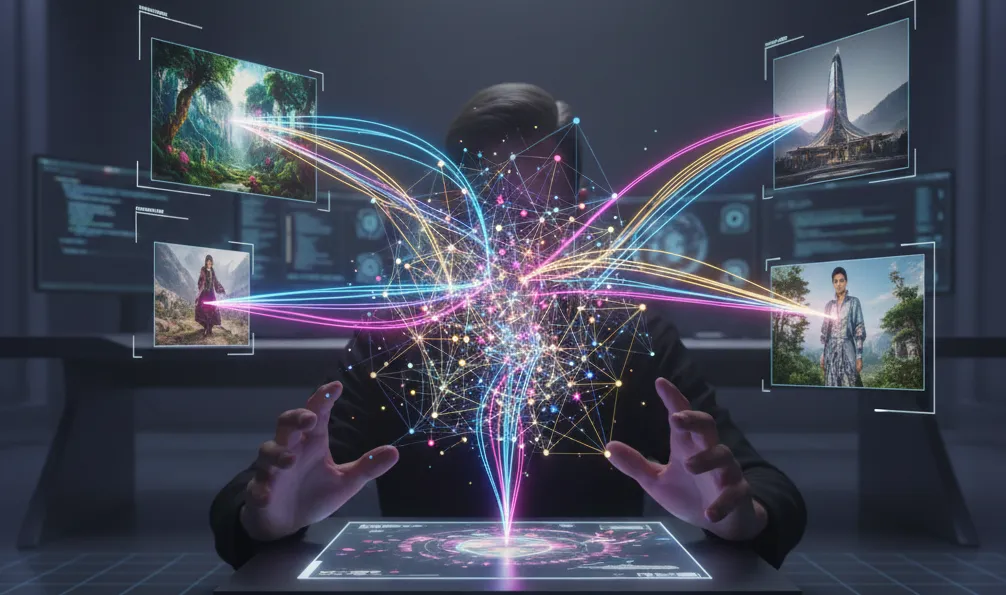
Quick Summary (TLDR): Traditional B2B visual production often faces bottlenecks due to high photography costs and slow agency turnaround times, but this guide introduces a high-fidelity dual-tool workflow using DALL-E 3 and Midjourney. By mastering technical parameters and style reference methods, professionals can produce brand-aligned assets with surgical precision. This methodology shifts creative operations from cost-prohibitive manual shoots to a scalable, real-time asset factory that eliminates creative waste.
Why Generating Images with AI is the New B2B Standard
The shift from manual photography to automated synthesis is the most significant leap in modern marketing. When a company decides to adopt a workflow for generating images with AI for their brand, they are moving from "selection"—choosing what already exists in stale stock libraries—to "intentional creation." For B2B professionals, this means producing hyper-specific imagery for whitepapers, pitch decks, and case studies that were previously cost-prohibitive.
In the legacy model, a specific visual concept required hiring a photographer, scouting a location, and waiting days for post-production. Today, the visual synthesis model reduces the feedback loop from 72 hours to 60 seconds. This velocity allows for real-time brand pivots and a significant reduction in creative overhead. By mastering the nuances of AI engines, you aren't just "prompting"; you are architecting digital assets that maintain the high-fidelity standards required for corporate environments.
Setting Up the Digital Toolbox
To execute this masterclass, you need a specific set of tools configured for professional output rather than casual experimentation. Each tool plays a distinct role in the "Asset Factory" pipeline:
ChatGPT Plus (DALL-E 3): Serves as our "Semantic Architect." It is superior at following complex instructions and testing the "logic" of a visual before moving to high-resolution rendering.
 ChatGPTAdvanced AI chatbot for conversation, coding, and creativitySubscription Starts from $5.00Free plan • No credit card required
Midjourney v7: The industry's gold standard for cinematic textures, lighting control, and professional-grade finishes.
Discord or Midjourney Web UI: Essential for high-volume work and using advanced parameters like
--sref(Style Reference). MidjourneyThe premier generative AI for high-fidelity artistic and photorealistic imagery.Subscription Starts from $10.00
Adobe Photoshop (Generative Fill): The surgical tool for final cleanup, logo placement, and expanding "dead space" for typography.
Professional results require a paid subscription to Midjourney to access "Stealth Mode" (if on the Pro plan) and to ensure you have full commercial usage rights for the assets created.
Step-by-Step Workflow: From Logic to Final Asset
Step 1: Initialization and Concept Drafting
Before touching a professional engine, use DALL-E 3 to test the concept. DALL-E 3 excels at understanding the relationship between objects (e.g., "a CEO standing behind a desk while looking at a transparent tablet"). This stage is about rapid prototyping to see if the engine understands your brand's specific spatial requirements.
Prompt Example:
Logic: Prototyping a diverse B2B interaction with futuristic technology to check if the AI understands the spatial arrangement and corporate attire.
Technical String: A professional B2B office scene where diverse team members are interacting with a holographic data display. Style: Photorealistic, 8k, cinematic lighting, corporate-tech aesthetic.
Step 2: Technical Execution and Parameter Control
Once the concept logic is proven, move to Midjourney to apply "Master Tradesman" parameters. This is where you transition from a "digital look" to a "cinematic look." Open your settings by typing /settings in Discord and ensure Version 7 is active. To ensure the most realistic results, toggle on "Raw Mode" which reduces the AI's tendency to over-beautify and saturate the image.
Prompt Example:
Logic:
Applying cinematic realism and specific B2B aspect ratios to the drafted concept while maintaining skin texture.Technical String:
/imagine prompt: A professional B2B office scene, diverse team members interacting with a holographic data display, corporate-tech aesthetic, shot on 35mm lens, f/2.8, cinematic office lighting --ar 16:9 --stylize 250 --v 7.0 --style raw
Step 3: Professional Polishing and Final Refinement
A pro never uses the first grid of four results. Use the "Vary Region" (Inpainting) tool, which appears as a button labeled "Vary (Region)" beneath your upscaled image in the Midjourney Web UI or Discord. This allows you to select specific errors—like a distorted hand or a weird background artifact—and regenerate only that area.
Finally, click the "Upscale (Subtle)" button. This increases the resolution to 2048px, providing the crispness needed for printed banners or high-resolution web headers without altering the textures you worked hard to create.
Pro-tip from the field: To achieve perfect brand consistency across 100+ images, use the
--srefcommand. Upload an official brand photo to a public URL (or Discord) and add--sref [URL]to your prompt. This forces the engine to adopt your specific color palette and lighting style every time, making the process of generating images with AI perfectly brand-compliant.
Troubleshooting and Correcting Failures in Visual Synthesis
The most common failure when generating images with AI for B2B is the "Plastic Look"—where skin looks too smooth and colors are over-saturated. This usually happens when the --stylize (or --s) value is too high, fighting the natural textures of the scene.
The Solution: Drop the stylize value to
--s 50and ensure the--style rawparameter is present to strip away the "AI-art" filter.Technical String: /imagine prompt: [Your Prompt] --style raw --s 50
Another common issue is "Prompt Bleed," where the color of one object (e.g., a blue tie) starts appearing on the walls. To fix this, use Remix Mode (found in /settings) to subtly edit the prompt after the first generation. If the engine fails on specific text or branding, use Ideogram 2.0 as a middle-step for the text-heavy layer, then merge it with your Midjourney background in Photoshop for a flawless composite.
Pro-tip from the field: If the hands are still failing after three "Vary Region" attempts, use Photoshop's Generative Fill. Select the hand, leave the prompt box empty, and click "Generate." Photoshop’s engine is often more conservative and accurate for small anatomical fixes.
Business Impact: ROI, Velocity, and SOPs
In 2025, the ROI of generating images with AI isn't just about saving money; it's about competitive velocity. Companies that implement these standardized workflows see a 90% reduction in external agency dependencies for social and web content.
To scale this, you must treat your prompts as code. Document your Technical Seeds and Style Reference URLs in a centralized library. By doing so, you turn a creative task into a scalable "Asset Factory." This ensures that every piece of outbound content—from LinkedIn ads to internal reports—is visually elite and perfectly on-brand, regardless of which team member is hitting "Enter."
Conclusion: Linking technical mastery to the role of a "Digital Asset Architect" is the hallmark of a Senior Content Strategist. As you move beyond simple prompting into deep parameter control, you ensure your brand remains visually dominant and operationally lean. Mastering the nuances of generating images with AI is no longer an optional skill; it is the cornerstone of modern B2B content architecture.



Comments (0)
Leave a Comment