
Professional-grade AI video generation with cinematic consistency and physics-based motion.
6.4/10 Cinematic video quality, but the credit math and no-refund policy need reading before you pay.
Best for: Social video creators needing cinematic short-form clips, 10 to 30 videos per month
Strongest at: Image-to-Video with realistic physics, 3-minute max length beats Runway and Sora
Main limitation: Professional mode costs 3.5x more credits than Standard, fees non-refundable once activated
Compared to: Runway at $95/month unlimited removes per-video credit constraints entirely
Try this first: Use the free 66 daily credits on Image-to-Video before entering payment details
The output quality is the best in its price range. Image-to-Video handles realistic physics and lighting consistency better than most competitors. The 3-minute maximum length is longer than Runway and Sora combined, and the free plan gives you real daily generations without a credit card.
Three things hold the score at 6.4. The Standard plan's 660 credits produces 18 Professional mode clips per month, not 66. The official Terms of Paid Service state fees are "generally non-refundable once activated." The Ultra plan increased 41% in five months, from $128 to $180 between August 2025 and January 2026. The platform is operated by Kuaishou Technology under Chinese data jurisdiction with no SOC 2 certification published.
Start on monthly billing. Track your actual Professional mode credit consumption across two full cycles before committing to annual rates.
Skip it if you need predictable monthly costs. The credit system means your per-video cost varies significantly depending on model, duration, quality mode, and whether you generate audio. Runway's unlimited plan at $95/month removes the variable entirely if you're producing at volume.
Skip it if you need a refund option. The official Terms of Paid Service state that fees are "generally non-refundable once activated." Credits consumed by failed or low-quality generations are gone. Runway and Creatify both have clearer trial and refund structures.
Skip it if you handle sensitive business content. Kling AI is operated by Kuaishou Technology, a Chinese company subject to Chinese data law. The platform has no published SOC 2 Type II certification. If you store client imagery, proprietary brand assets, or sensitive visual content in the platform, the data jurisdiction and lack of independent security audit is a relevant consideration.
Skip it if you need responsive support. The only documented support channel is support@klingai.com, listed in the official Terms. There is no live chat, no published response time, and no support tier for paid plan subscribers.
Skip it if your use case is business-specific video. Talking-head content, product walkthroughs, explainer videos, and client presentations are not Kling AI's design priority. HeyGen ($29/month) and Creatify ($19/month) are built specifically for those workflows with considerably less friction.
Kling AI's output quality for cinematic short-form video is the strongest in its price range. The Image-to-Video workflow handles realistic physics, lighting consistency, and motion quality better than most comparable tools. A product photo with a specific prompt produces a clip that would have required a production setup twelve months ago.
The 3-minute maximum video length is the longest currently available in consumer AI video. Runway caps at 40 seconds per generation. Sora caps at around 35 seconds. For creators who need longer clips or who chain shorter generations, Kling AI has a structural advantage.
The tool set breadth is also real. The official platform now includes Virtual Try-On, Object Removal, Object Replacement, and AI Human Video Studio alongside the core video generation tools. For e-commerce and fashion-adjacent use cases, that depth matters.
The free plan is functional, not cosmetic. 66 daily credits is enough to produce 1 to 2 Professional mode clips per day without paying. That's a more generous evaluation window than most tools in this category.
The credit system punishes experimentation. AI video generation requires iteration. A realistic workflow means 2 to 3 attempts per finished clip. At Professional mode rates, a 660-credit monthly bank supports around 18 first-attempt videos or around 6 to 9 finished clips after realistic iteration. That number doesn't always match what solo founders expect from a "660 credits per month" headline.
The tool depth works against discoverability. Over 20 tools in the sidebar is impressive technically, but a solo founder who wants to animate a product photo has to read through technical tool names to find the right one. The platform is designed for users who already know what they're doing.
The biggest risk is committing to annual billing before understanding your actual credit consumption pattern. Here's why this matters specifically:
The official Terms of Paid Service state fees are "generally non-refundable once activated." Annual billing typically costs less per month, and for a tool you plan to use consistently, the savings are real. But if your Professional mode usage consumes credits faster than expected, you can't get a refund on the unused portion of an annual commitment.
The Ultra plan pricing history is also worth noting: it launched at $128/month in August 2025 and increased to $180/month by January 2026. That's a 41% price increase in roughly 5 months. Pricing on this platform has moved significantly in a short period. An annual commitment means you pay the rate at the time of purchase regardless of what competitors offer 6 months later.
Start on monthly billing. Test your actual credit consumption across at least 2 full billing cycles. Then evaluate the annual rate with real data.
The task: generate a 5-second cinematic clip using Text to Video on the free plan, to test what a new user actually gets before paying anything.
Settings used: VIDEO 3.0 Omni, 720p, 5 seconds, 16:9, Native Audio off. Free plan (66 daily credits).
The prompt used:
"A minimalist dark studio. A sleek laptop sits open on a clean desk, its screen glowing softly with an AI interface. A hand types a short prompt. Within seconds, a cinematic video clip appears on the screen — a product shot of a glass perfume bottle rotating slowly in warm studio light, liquid catching the light inside. The camera slowly pushes in toward the laptop screen. Shallow depth of field. No people visible. Soft ambient hum. Professional product photography aesthetic."
Step 1 (2 min): Sign up at app.klingai.com. Email, Google, or Facebook login. No credit card required. 66 daily credits are available immediately after email verification.
Step 2 (1 min): Click Omni in the left sidebar. This is the fastest route to Text to Video — you type your prompt directly into the combined input field without navigating into a separate tool. Select VIDEO 3.0 from the model picker at the bottom of the input bar.
Step 3 (2 min): Paste the prompt. Set duration to 5 seconds, resolution to 720p, aspect ratio to 16:9. Leave Native Audio off. Confirm the credit cost shown before generating — at 720p on the free plan, this generation costs fewer credits than Professional mode at 1080p, which is why 720p is a sensible choice for testing before committing paid credits.
Step 4: Hit Generate and wait.
On the free plan, this is where the experience changes. Queue time on the free plan is significantly longer than on paid tiers, which get priority processing. The wait was over 10 minutes. There's no way to estimate it in advance — the queue counter shows your position but not a time. If you're testing on the free plan during peak hours, plan for 15 to 20 minutes from submit to result.
Step 5 (result): The output clip is embedded above. The camera push-in, the screen glow, and the depth of field held up well for a first-attempt generation at 720p. The watermark is visible in the lower corner — that's present on all free plan exports and is only removed on paid plans (Standard and above).
Total time: approximately 15 to 20 minutes, mostly waiting in queue. The generation itself was fast once it started.
Two things that matter for your first session. First, the queue wait on the free plan is the real time cost, not the setup or the prompt. On a paid plan with priority processing, this drops substantially. Second, the watermark on free exports is not subtle. It's visible enough that you can evaluate output quality, but you can't use the clip for anything public without upgrading.
Generated on the free plan using VIDEO 3.0 Omni, 720p, 5 seconds. Queue wait: approximately 15 minutes. Watermark visible in lower corner — removed on Standard plan and above.
The ROI question depends entirely on which plan and which mode you're actually using, and those two variables interact in a way that isn't obvious from the pricing page.
At Standard plan pricing, 660 credits is the headline. In Standard mode, a 5-second clip costs around 10 credits, so 660 credits could theoretically produce 66 clips. But most creators who use Professional mode regularly get around 18 videos per month on the Standard plan, not 66.
With realistic iteration (2 to 3 attempts per finished clip), actual finished output at Professional mode is closer to 6 to 9 clips per month on the Standard plan. For a solo founder spending $100 to $200 per month on outsourced product video, even 6 to 9 high-quality AI clips per month is a meaningful saving. But you need to know that's the realistic math before you subscribe, not after you've committed to an annual plan.
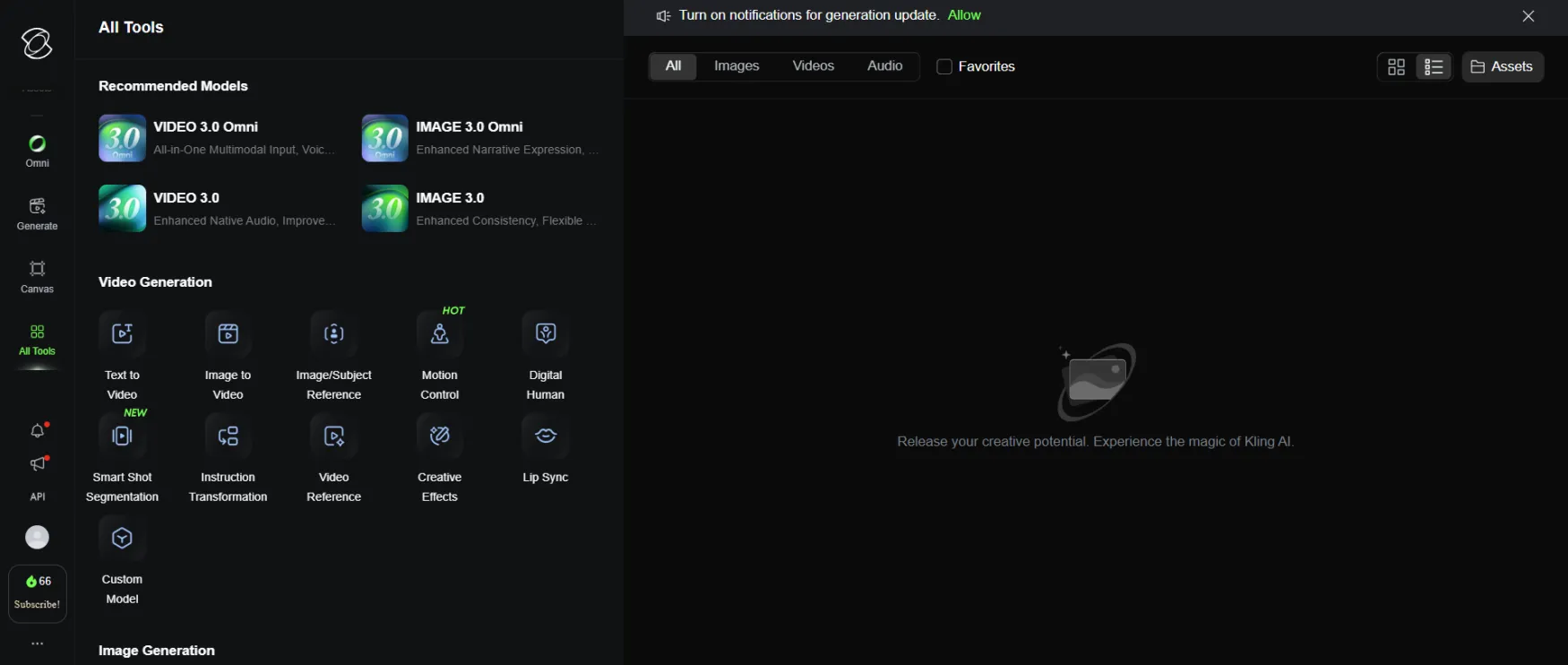
Pricing confirmed from the live membership page (screenshot, March 2026). The page shows a billing toggle with two modes: Yearly (-34%) and Monthly (-12%). The prices below are the current promotional rates — the strikethrough prices shown are the pre-discount originals.
Basic — $0/month (Free forever): 66 daily credits that reset every 30 days (credits expire Apr 14, 2026 per the account dashboard). 3 trials for 1080p video generation. 2 trials for Extend. No credit card required. All exports include a watermark.
Standard — $6.99/month (was $10, up to 30% off). Next monthly renewal: $8.80 (12% off). 660 credits/month. Watermark-free exports, full model access, commercial use rights.
Pro — $25.99/month (was $37, up to 30% off). Next monthly renewal: $32.56 (12% off). 3,000 credits/month.
Premier — $64.99/month (was $92, up to 29% off). Next monthly renewal: $80.96 (12% off). 8,000 credits/month.
Ultra (NEW) — $127.99/month (was $180, up to 29% off). Next monthly renewal: $159.99 (11% off). 26,000 credits/month.
Two things to note before subscribing. First, the "next monthly renewal" prices shown on the page are higher than the current promotional prices — the renewal rates are $8.80, $32.56, $80.96, and $159.99 respectively, not the headline rates. The headline prices appear to be new subscriber promotions. Confirm the renewal rate before subscribing. Second, first-time subscribers can apply a referral code for 50% bonus credits in the first month, up to 5,000 bonus credits. If someone referred you to Kling AI, ask for their code before subscribing.
The credit math before you commit: In Standard mode, a 5-second video costs approximately 10 credits. In Professional mode, approximately 35 credits. At the Standard plan's 660 credits, that's 66 Standard mode clips or around 18 Professional mode clips per month. With realistic iteration (2 to 3 attempts per finished clip), actual finished output at Professional mode is closer to 6 to 9 clips per month.
Pricing verified from live account screenshot, March 2026. Confirm current rates at app.klingai.com/global/membership/membership-plan before subscribing.
You're generating your first clip within 10 to 15 minutes of creating an account. No software installation and no configuration required before you can access the core tools.
After email verification, you land on a dashboard with the tool list in the left sidebar. The official platform lists over 20 distinct creation tools including Text-to-Video, Image-to-Video (multiple modes), Lip Sync Studio, Virtual Try-On, Special Effects Lab, and Video Extender. This is a wider surface area than most AI video tools, and it's not instantly obvious which tool to start with for your use case.
The credit counter is visible in the top navigation at all times. On the free plan, 66 credits appear on login and reset daily. Unused daily credits are lost at reset — there's no carryover and no warning before expiry.
Magic moment: The first time Image-to-Video produces a clip with realistic physics and consistent lighting from a well-photographed source image. The result is genuinely impressive.
Friction point: Choosing between Image-to-Video modes takes a few minutes of reading. "Frame Mode Animation" and "Multi-ID Video Generator" are technical descriptions, not use-case descriptions. A solo founder who wants to animate a product photo has to map that task to the right tool name before they can start.
No credit card is required to access the free plan. The 66 daily credits are enough to test the tool meaningfully before committing.
The Kling 3.0 interface is clean, dark-themed, and fast. The left sidebar has five fixed items: Explore, Assets, Omni, Generate, and API. That's a shorter list than most AI platforms at this capability level, and it keeps navigation from feeling overwhelming on first login.
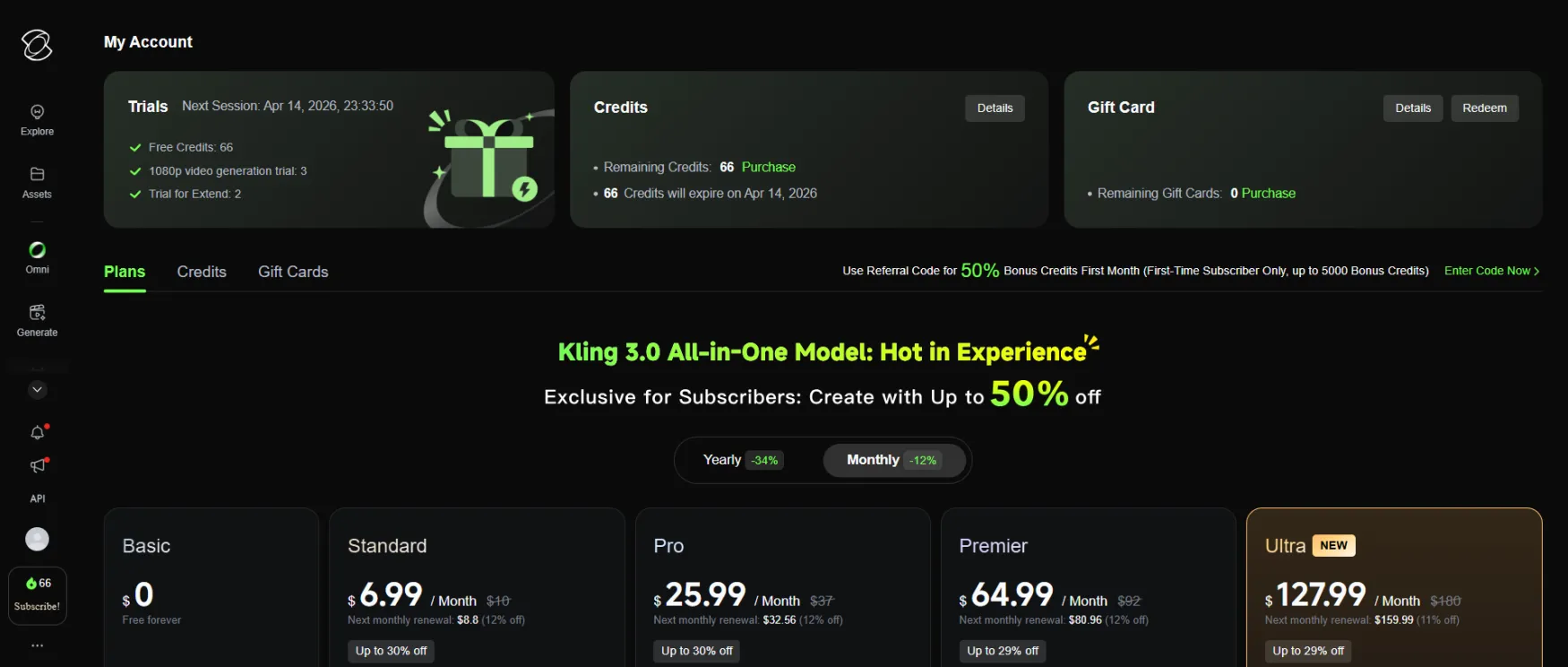
Omni is the standout UX decision. It's an all-in-one prompt interface that accepts text, images, and video in the same input box, then routes the generation to the right model automatically. You don't have to decide upfront whether you're doing "Text to Video" or "Image to Video" — you just describe what you want and attach your reference. For new users especially, this removes the biggest early friction point. Character presets (Jinx, Capybara, Wedding styles, and others) line the top of the Omni interface, giving you a starting point if you don't know what to prompt.
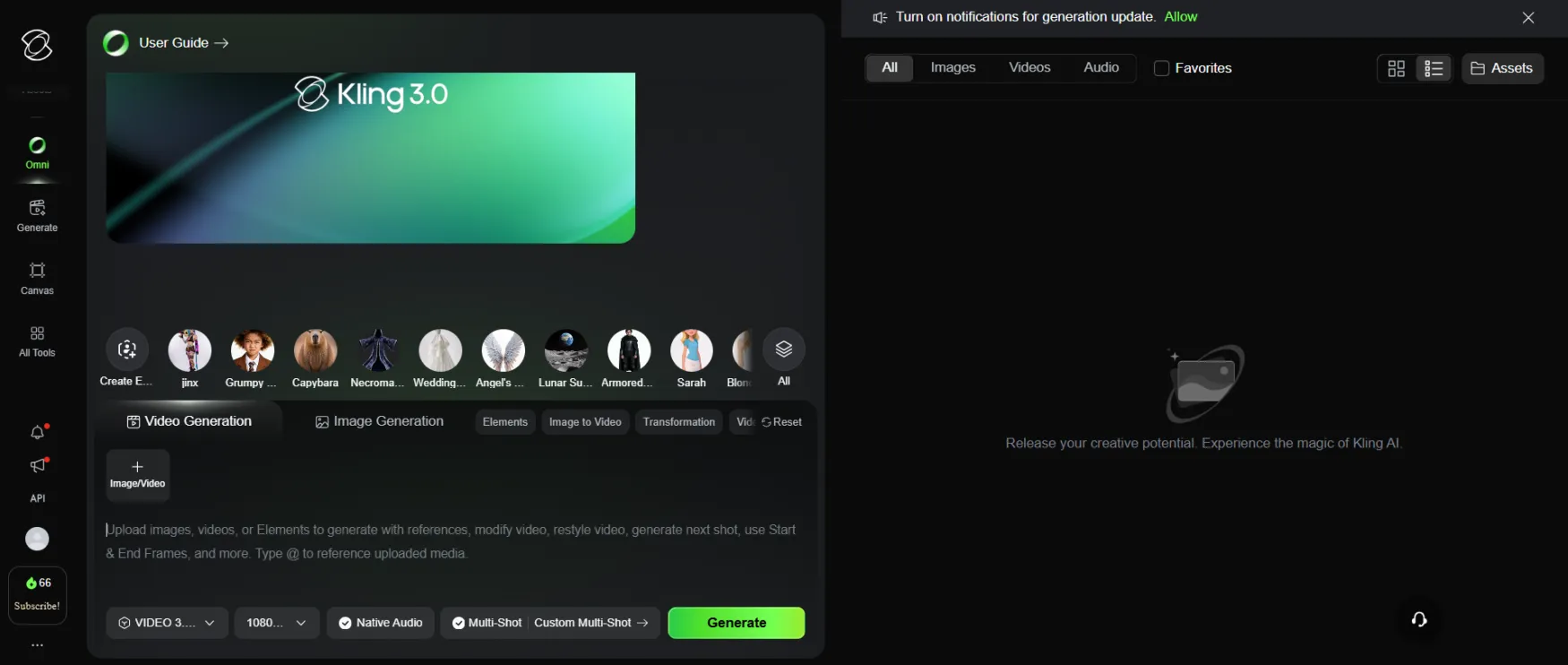
The Generate tab is the structured alternative. It splits into four clear tabs: Image Generation, Video Generation, Motion Control, and Avatar. The Video Generation view shows the active model (VIDEO 3.0, currently with a 25% discount badge), a clean frame upload area, a prompt field with usage hints inline, and a bottom bar showing your current settings: resolution, duration, aspect ratio, clip count, and Native Audio toggle. Everything you need to configure a generation is visible without opening a settings panel.
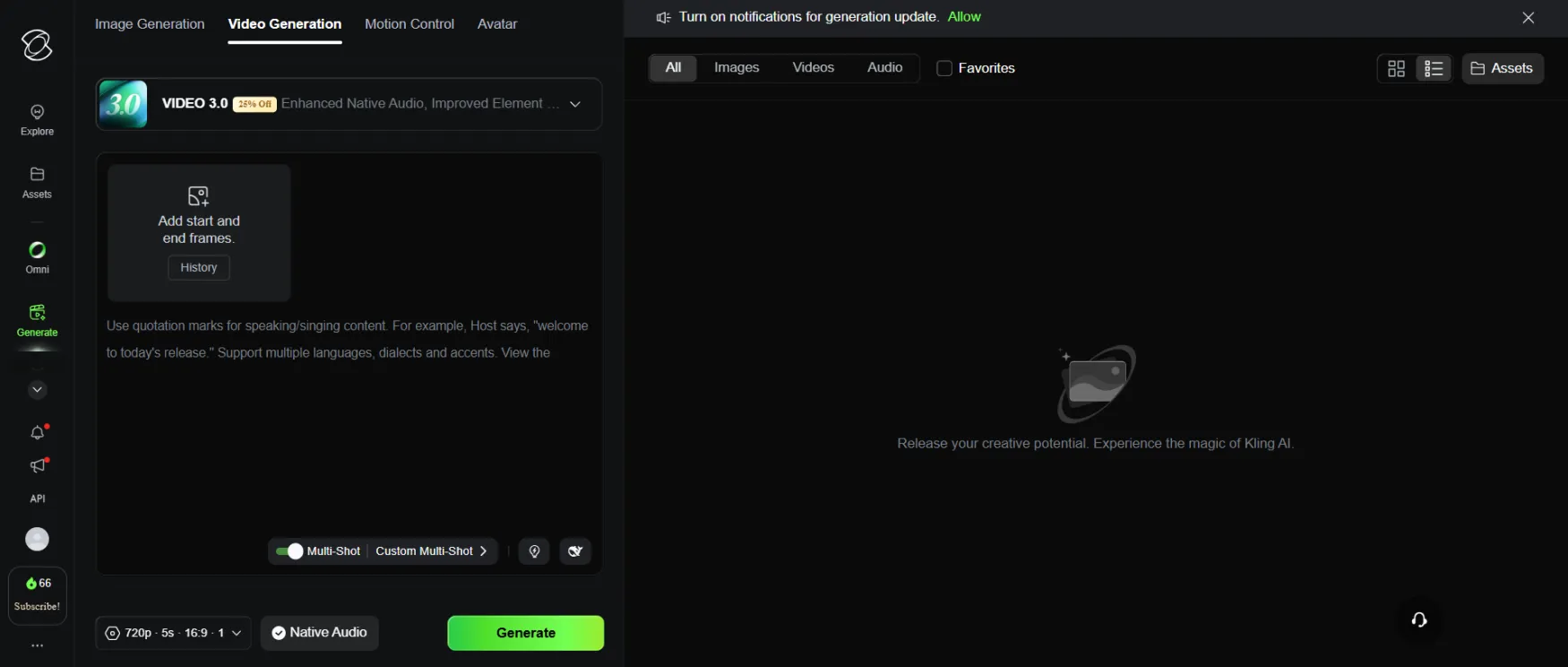
All Tools is the full tool directory, organized into Recommended Models at the top (VIDEO 3.0 Omni, IMAGE 3.0 Omni, VIDEO 3.0, IMAGE 3.0), then Video Generation tools in a grid: Text to Video, Image to Video, Image/Subject Reference, Motion Control, Digital Human, Smart Shot Segmentation, Instruction Transformation, Video Reference, Creative Effects, Lip Sync, and Custom Model. The grid layout with icon + label makes scanning faster than a text list.
The credit counter (66 credits, shown in the bottom left of the sidebar) is always visible. It doesn't interrupt the workflow, but it's always there. For new users learning what each generation costs, that persistent visibility helps.
One genuine friction point remains: the Explore feed defaults to a community gallery of generated content. For a solo founder who came to produce something, landing on other people's videos before reaching the creation tools adds one extra click. Omni and Generate are the right starting points — they're one sidebar tap away, but not the default landing view.
| Feature | Rating | Details |
|---|---|---|
| Text-to-Video |
|
Handles camera direction, lighting, and subject movement in plain language. Output at Professional mode is cinematic for short-form content. Consistency drops for complex multi-character scenes or highly specific subjects. |
| Image-to-Video |
|
The strongest feature on the platform. Product shots, portraits, and illustrated backgrounds all animate convincingly at Professional mode. Prompt specificity directly correlates with output quality. |
| Video Extender |
|
Chains additional generations to extend an existing clip up to approximately 3 minutes. Consistency across chain points is good but subtle visual drift can appear in longer sequences. |
| Multi-Elements Editing |
|
Accepts up to 4 reference images to maintain character or scene consistency across generations. Best for e-commerce and fashion content. Available on paid plans only. |
| Lip Sync Studio |
|
Matches lip movements to audio or script. Works for portrait-oriented social content. Less convincing for complex dialogue or non-frontal angles. Not a substitute for HeyGen's purpose-built avatar workflow. |
| Native Audio (Kling 2.6) |
|
AI-generated voice, sound effects, and ambient audio built into video output. Removes a post-production step for simple content. At 50 to 200 credits per 10-second audio-enabled video, it consumes credit budget quickly. |
| Virtual Try-On |
|
Previews clothing items on AI-generated avatars. Usable for product pages. Output quality is not at the level required for premium brand campaigns. Relevant primarily for fashion e-commerce. |
The official support contact documented in the Terms of Paid Service is a single email address: support@klingai.com. There is no live chat, no phone support, and no published response time commitment. No support tier is differentiated between free and paid users.
The official Terms of Paid Service at klingai.com/global/docs/payment-policy confirm that fees are "generally non-refundable once activated." There is no documented trial period or satisfaction guarantee. If you have a billing dispute, a failed generation credit loss, or an account access issue, email is your only official path with no SLA backing it.
For a platform charging up to $180/month for the Ultra plan, the support infrastructure is thin. Verify the current support channel availability and refund terms directly with the company before subscribing to any paid plan.
This review uses only official Kling AI sources per editorial policy. What official sources confirm: Kling AI reached $240 million ARR in December 2025, approximately 19 months after global launch, and serves over 6 million creators globally.
The official platform has expanded substantially since launch — it now includes Virtual Try-On, Object Removal Video, Object Replacement Video, AI Human Video Studio, and Text-to-Audio alongside the core generation tools. This is a platform shipping features at significant pace, which is a positive indicator for long-term development but also means the product you evaluate today may look different in 6 months.
For independent user perspective on credit refunds, billing behaviour after cancellation, and support response times, check r/KlingAI, r/aivideo, and Trustpilot directly before subscribing to a paid plan.